Emoji Picker
Add emojis, symbols, and special characters to your documentation with ease.
Overview
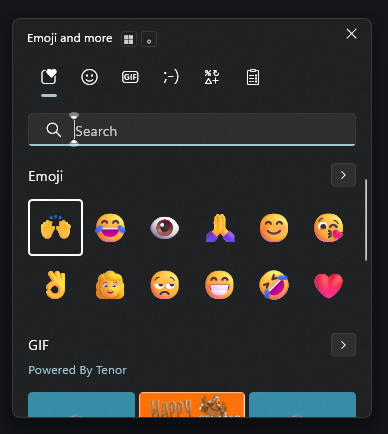
The emoji picker button provides quick access to Windows' built-in emoji and symbol selector. You can insert:
- 😀 Emojis: Smileys, objects, animals, food, activities, and more
- ⌨️ Kaomoji: Text-based emoticons like (╯°□°)╯︵ ┻━┻
- ∞ Symbols: Math symbols, currency signs, arrows, shapes, and special characters
- 🔍 Search: Find specific emojis by typing keywords

How to Use
There are three ways to access the emoji picker:
Method 1: Emoji Button (Recommended)
- Click the 😀 emoji button in the editor toolbar (next to the microphone icon)
- A notification will appear with instructions
- Press Win+. (Windows key + period) to open the emoji picker
- Browse or search for your emoji
- Click to insert it at the cursor position
Method 2: Keyboard Shortcut
- Click in the editor where you want to insert the emoji
- Press Win+. (Windows key + period) on your keyboard
- Alternative: Win+; (Windows key + semicolon)
- The Windows emoji picker will appear
- Select your emoji from the picker
Method 3: Right-Click Menu
- Right-click anywhere in the editor
- Look for the emoji/symbol option in the Windows context menu
- Select your emoji from the picker
Emoji Picker Features
Categories
The Windows emoji picker organizes content into tabs:
- 😀 Smileys & People: Faces, gestures, people, body parts
- 🐱 Animals & Nature: Animals, plants, weather, food
- 🍔 Food & Drink: Meals, beverages, fruits, vegetables
- ⚽ Activities: Sports, games, hobbies, events
- 🚗 Travel & Places: Vehicles, buildings, maps, flags
- 💡 Objects: Tools, technology, clothing, household items
- ⌨️ Symbols: Math, currency, arrows, shapes, punctuation
- ⌨️ Kaomoji: Text-based emoticons
Search Function
- Type keywords to find specific emojis
- Examples: "heart", "star", "arrow", "check"
- Search works across all categories
Recently Used
- The picker remembers your recently used emojis
- Quick access to frequently used symbols
- Appears at the top of the picker
Common Use Cases
Status Indicators
Use emojis to show status at a glance:
- ✅ Completed
- ❌ Error or failed
- ⚠️ Warning
- ℹ️ Information
- 🔄 In progress
- ⏸️ Paused
- 🚀 Launched
Lists and Bullets
Enhance your lists with visual markers:
- ▪️ Square bullet
- • Round bullet
- ➤ Arrow bullet
- ✦ Star bullet
- 📌 Pin point
- 🔹 Diamond bullet
Arrows and Directions
Guide readers with directional indicators:
- → Next step
- ← Previous step
- ↑ Move up
- ↓ Move down
- ⇒ Implies or results in
- ↔ Bidirectional
Technical Documentation
Add visual context to technical content:
- 💻 Code or programming
- 🖥️ Desktop application
- 📱 Mobile application
- ⚙️ Settings or configuration
- 🔧 Tools or utilities
- 🐛 Bug or issue
- 🔒 Security or private
- 🌐 Web or internet
- 📊 Data or analytics
- 💾 Storage or database
Checkboxes and Tasks
Create visual task lists:
- ☐ Unchecked task
- ☑ Checked task
- ☒ Completed with X
- ✓ Simple checkmark
- ✔️ Bold checkmark
Tips and Best Practices
Do's
- ✅ Use emojis to enhance readability
- ✅ Be consistent with emoji usage across your documentation
- ✅ Use emojis as visual anchors for important information
- ✅ Combine emojis with text for clarity
- ✅ Test how emojis appear in exported documentation
Don'ts
- ❌ Don't overuse emojis - they can become distracting
- ❌ Don't rely solely on emojis without text explanation
- ❌ Don't use emojis in place of critical information
- ❌ Don't assume all readers interpret emojis the same way
- ❌ Don't use emojis in technical code examples
Accessibility Considerations
- Always provide text alternatives for important information
- Emojis should enhance, not replace, clear written content
- Screen readers may read emoji descriptions differently
- Consider your audience and documentation context
Keyboard Shortcuts Reference
| Action | Shortcut |
|---|---|
| Open emoji picker | Win+. (period) |
| Alternative shortcut | Win+; (semicolon) |
| Search in picker | Start typing |
| Navigate categories | Arrow keys or click tabs |
| Insert emoji | Click or press Enter |
| Close picker | Esc key |
Troubleshooting
Emoji picker doesn't open
- Ensure you're using Windows 10 (version 1809 or later) or Windows 11
- Try the alternative shortcut: Win+;
- Check if Windows is up to date
- Restart your computer if the feature isn't responding
Emojis appear as boxes or question marks
- Update your Windows operating system
- Ensure you have the latest emoji font installed
- Some older systems may not support newer emojis
Emojis look different after export
- Emojis may render differently on different operating systems
- This is normal - emoji appearance varies by platform
- Test your exported documentation on target platforms
Platform Differences
Windows
- Use Win+. or Win+; to open emoji picker
- Emojis render using Windows emoji font (Segoe UI Emoji)
Related Features
- Voice Typing: Use the 🎤 button to dictate text (Win+H)
- Box Characters: Use the ├─ dropdown for tree diagrams
- Formatting Toolbar: Access other text formatting options
- Markdown Syntax: Combine emojis with markdown formatting
Examples
Documentation Header
# 📚 User Guide

Welcome to the comprehensive guide for our application.
Feature List
## ✨ Key Features

- 🚀 Fast performance
- 🔒 Secure by default
- 🎨 Customizable themes
- 📱 Mobile responsive
Status Updates
## Project Status

- ✅ Phase 1: Complete
- 🔄 Phase 2: In Progress
- ⏸️ Phase 3: On Hold
- 📅 Phase 4: Scheduled
Warning Box
> ⚠️ **Warning**: This action cannot be undone. Please proceed with caution.
Success Message
> ✅ **Success**: Your changes have been saved successfully!