Managing Pages
Learn how to create, edit, organize, and delete pages in your documentation.
Creating Pages
New Page Button
- Click "+ New Page" in the sidebar
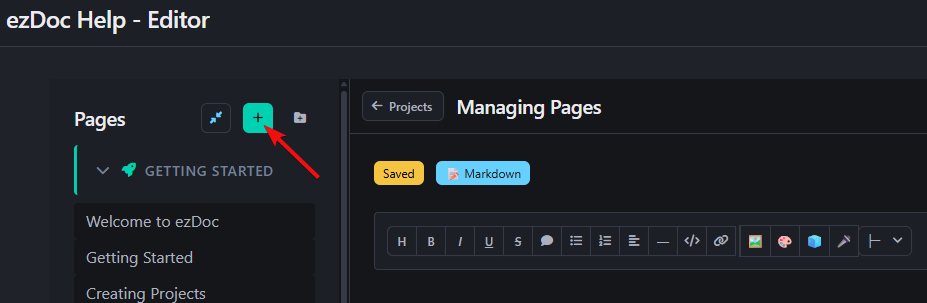
- Enter a page title
- Choose content type (Markdown or HTML)
- Click "Create"
Page Properties
Each page has:
- Title - Displayed in navigation
- Slug - URL-friendly identifier
- Content Type - Markdown or HTML
- Order - Position in navigation
Editing Pages
Opening a Page
Click any page in the sidebar to open it in the editor.
Switching Content Type
Change between Markdown and HTML:
- Push the "Markdown" or "HTML" toggle button
- Content is preserved
Editor Features
- Toolbar - Quick formatting buttons
- Auto-save - Saves every 30 seconds
- Manual save - Ctrl+S / Cmd+S
- Preview - See rendered output
Organizing Pages
Reordering Pages
Drag and drop pages in the sidebar to reorder them.
Moving to Categories
Drag a page onto a category header to move it.
Uncategorized Pages
Pages without a category appear in the "Other Pages" section when exported.
Renaming Pages
- Open the page
- Click the page title at the top
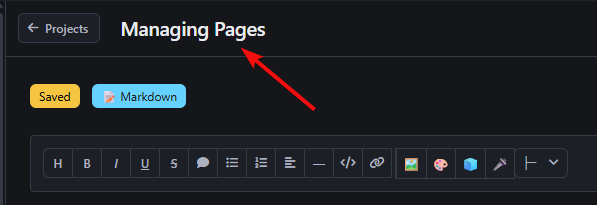
- Enter a new title
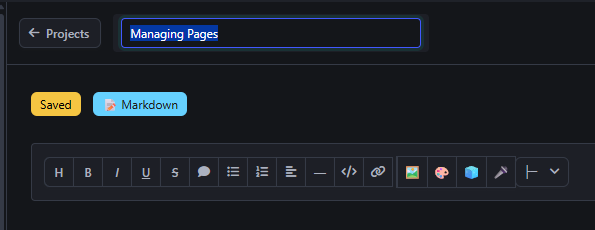
- Press Enter or click outside
The slug updates automatically.
Deleting Pages
- Open the page you want to delete
- Click the "🗑️ Delete" button
- Confirm the deletion
⚠️ Warning: Deleting a page is permanent and cannot be undone!
Page Navigation
Sidebar Navigation
- Click any page to open it
- Scroll through long page lists
- Collapse/expand categories
Keyboard Navigation
- Ctrl+S - Save current page
- Ctrl+P - Preview current page
- Esc - Close modals
Page Content
Markdown Pages
Write using Markdown syntax:
# Heading
**Bold** and *italic*
- Lists
[Links](url)
HTML Pages
Full HTML control:
<h1>Heading</h1>
<p>Paragraph</p>
<div class="box">Content</div>
Mixed Content
You can use HTML in Markdown pages:
# Markdown Heading

<div class="notification is-info">
HTML notification in Markdown!
</div>

Back to **Markdown**.
Best Practices
Page Titles
- Keep titles concise
- Use descriptive names
- Maintain consistent naming
Content Organization
- One topic per page
- Use headings for structure
- Link related pages
File Management
- Regular saves
- Use categories
- Keep pages focused
✨ Pro Tip: Use the preview feature frequently to see how your pages will look when exported!