Tree Characters & Folder Diagrams
Create professional folder tree diagrams using box-drawing characters.
Overview
The Tree Characters feature provides quick access to special box-drawing characters used to create visual folder and file structure diagrams in your documentation. No need to remember Alt codes or copy-paste from other sources!
How to Use
Quick Access
- Click the ├─ dropdown button in the editor toolbar
- Select a character from the menu
- The character is inserted at your cursor position
- Continue building your tree structure
Button Location
The tree characters button is located in the editor toolbar, in the formatting section:
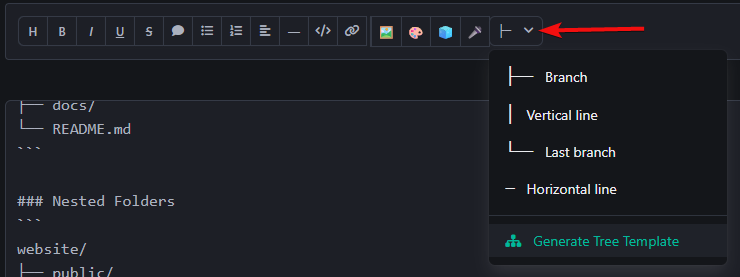
Available Characters
The dropdown menu provides these box-drawing characters:
| Character | Name | Alt Code | Usage |
|---|---|---|---|
├── |
Branch | Alt+195 | Middle items in a list |
│ |
Vertical line | Alt+179 | Continuation line |
└── |
Last branch | Alt+192 | Last item in a list |
─ |
Horizontal line | Alt+196 | Extending branches |
Plus a special option:
- 📋 Generate Tree Template - Inserts a complete folder structure template
Generate Tree Template
The fastest way to create a folder tree is using the built-in template generator.
How to Use:
- Click ├─ dropdown button
- Select 📋 Generate Tree Template
- A complete folder structure is inserted:
project/
├── src/
│   ├── components/
│   │   ├── Component1.js
│   │   └── Component2.js
│   └── utils/
│       └── helpers.js
└── README.md
- Edit the folder and file names to match your project
- Add or remove lines as needed
Building Trees Manually
Basic Structure
Single Level:
project/
├── file1.txt
├── file2.txt
└── file3.txt
Multiple Levels:
project/
├── folder1/
│   ├── file1.txt
│   └── file2.txt
└── folder2/
    └── file3.txt
Step-by-Step Guide
Type the root folder name with a trailing slash:
project/Add first item using branch character
├──:project/ ├── src/Add continuation using vertical line
│:project/ ├── src/ │Add nested items with proper indentation:
project/ ├── src/ │ ├── file1.js │ └── file2.jsAdd last item using last branch
└──:project/ ├── src/ │ ├── file1.js │ └── file2.js └── README.md
Character Usage Guide
Branch ├──
Use for items that have siblings below them.
Example:
folder/
├── first.txt    ← Has items below
├── second.txt   ← Has items below
└── third.txt    ← Last item
Vertical Line │
Use to show continuation of a parent folder.
Example:
folder/
├── subfolder/
│   ├── file1.txt
│   └── file2.txt
│                ← Vertical line shows subfolder continues
└── file3.txt
Last Branch └──
Use for the last item in a list.
Example:
folder/
├── first.txt
├── second.txt
└── third.txt    ← Last item, no more siblings
Horizontal Line ─
Use to extend branches or create custom separators.
Example:
folder/
├──── file.txt   ← Extended branch
└──── last.txt
Common Patterns
Simple Folder Structure
my-project/
├── src/
├── tests/
├── docs/
└── README.md
Nested Folders
website/
├── public/
│   ├── images/
│   ├── css/
│   └── js/
├── src/
│   ├── components/
│   └── pages/
└── package.json
Files and Folders Mixed
app/
├── config/
│   ├── database.json
│   └── settings.json
├── src/
│   ├── index.js
│   └── app.js
├── .gitignore
└── README.md
Deep Nesting
project/
├── level1/
│   ├── level2/
│   │   ├── level3/
│   │   │   └── deep-file.txt
│   │   └── file2.txt
│   └── file1.txt
└── root-file.txt
Tips & Best Practices
Formatting Tips:
- Use monospace font (code blocks) for best alignment
- Keep consistent indentation (4 spaces per level)
- Add trailing slashes to folder names:
folder/ - No trailing slash for files:
file.txt
Readability:
- Don't nest too deeply (3-4 levels max)
- Group related items together
- Use blank lines to separate major sections
- Add comments to explain complex structures
In Markdown:
Wrap your tree in a code block for proper formatting:
```
project/
├── src/
└── README.md
```
In HTML:
Use <pre> tags to preserve formatting:
<pre>
project/
├── src/
└── README.md
</pre>
Examples
Documentation Project
docs/
├── getting-started/
│   ├── installation.md
│   ├── quick-start.md
│   └── configuration.md
├── guides/
│   ├── user-guide.md
│   └── admin-guide.md
├── api/
│   ├── authentication.md
│   ├── endpoints.md
│   └── examples.md
└── README.md
Web Application
my-app/
├── public/
│   ├── index.html
│   ├── favicon.ico
│   └── assets/
│       ├── images/
│       └── fonts/
├── src/
│   ├── components/
│   │   ├── Header.js
│   │   ├── Footer.js
│   │   └── Sidebar.js
│   ├── pages/
│   │   ├── Home.js
│   │   └── About.js
│   ├── utils/
│   │   └── helpers.js
│   └── App.js
├── package.json
└── README.md
API Project
api-server/
├── controllers/
│   ├── userController.js
│   └── authController.js
├── models/
│   ├── User.js
│   └── Session.js
├── routes/
│   ├── api.js
│   └── auth.js
├── middleware/
│   ├── auth.js
│   └── validation.js
├── config/
│   └── database.js
├── server.js
└── package.json
Keyboard Shortcuts (Alt Codes)
If you prefer using Alt codes directly:
- Hold Alt key
- Type the number on the numeric keypad
- Release Alt key
- Alt+195 →
├ - Alt+196 →
─ - Alt+192 →
└ - Alt+179 →
│
Note: Requires numeric keypad. Won't work with number row keys.
Troubleshooting
Characters Not Aligning?
Solution: Use a monospace font or code block:
- In Markdown: Wrap in triple backticks
``` - In HTML: Use
<pre>or<code>tags - Set font to Courier, Consolas, or Monaco
Characters Look Different?
Solution: Ensure proper character encoding:
- Use UTF-8 encoding for your document
- Some fonts may render characters differently
- Test with common monospace fonts
Template Not Inserting?
Solution:
- Ensure cursor is in the editor
- Click in the editor first, then use dropdown
- Check browser console for errors
Additional Uses
Beyond folder structures, these characters are useful for:
- Flowcharts - Simple process flows
- Hierarchies - Organization charts
- Dependencies - Package relationships
- Timelines - Event sequences
- Outlines - Nested lists
Example Hierarchy:
Company
├── Engineering
│   ├── Frontend Team
│   └── Backend Team
├── Design
│   └── UX Team
└── Marketing
    ├── Content Team
    └── Social Media Team
Quick Reference:
- Button: ├─ dropdown in editor toolbar
- Template: Click dropdown → Generate Tree Template
- Characters:
├──│└─── - Best in: Code blocks or monospace font