Voice Typing
Use your voice to write documentation hands-free with Windows voice typing.
Overview
The Voice Typing feature provides quick access to Windows built-in voice recognition, allowing you to dictate your documentation content instead of typing. This is especially useful for:
- Writing long sections of documentation
- Reducing typing fatigue
- Capturing ideas quickly
- Accessibility needs
- Multitasking while documenting
How to Use
Method 1: Voice Typing Button
- Click the 🎤 microphone button in the editor toolbar
- A notification will appear with instructions
- Press Win+H on your keyboard to activate Windows voice typing
- Start speaking - your words will appear in the editor
- Press Win+H again to stop voice typing
Method 2: Keyboard Shortcut
- Click in the editor where you want to type
- Press Win+H on your keyboard
- Start speaking
- Press Win+H again to stop
Method 3: Right-Click Menu
- Right-click anywhere in the editor
- Select More tools from the context menu
- Select "Voice typing" from the submenu
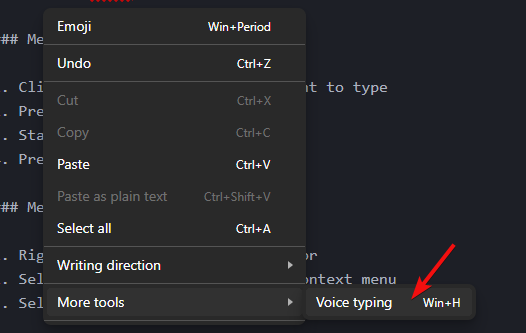
- Start speaking
- Press Win+H to stop
Button Location
The voice typing button is located in the editor toolbar, in the formatting section:

Voice Typing Tips
Getting Started
- Speak clearly and at a normal pace
- Use punctuation commands like "period", "comma", "question mark"
- Say "new line" to start a new line
- Say "new paragraph" to add a blank line
Punctuation Commands
- "period" or "full stop" → .
- "comma" → ,
- "question mark" → ?
- "exclamation point" or "exclamation mark" → !
- "colon" → :
- "semicolon" → ;
- "quote" or "open quote" → "
- "close quote" or "end quote" → "
Formatting Commands
- "new line" → Moves to next line
- "new paragraph" → Adds blank line
- "delete that" → Removes last phrase
- "scratch that" → Removes last phrase
Special Characters
- "at sign" → @
- "hashtag" or "pound sign" → #
- "dollar sign" → $
- "percent sign" → %
- "ampersand" → &
- "asterisk" → *
- "hyphen" or "dash" → -
- "underscore" → _
Requirements
- Windows 10 (version 1903 or later) or Windows 11
- Active internet connection (for cloud-based recognition)
- Microphone connected and configured
- Microphone permissions enabled for Windows
Troubleshooting
Voice Typing Not Working?
Check Microphone:
- Right-click anywhere in the editor
- Select More tools from the context menu
- Select "Voice typing" from the submenu
- Click the *Gear Icon on the voice typing launcher
- Select default microphone and your microphone to use from the list.
OR
- Go to Windows Settings → System → Sound
- Ensure your microphone is selected and working
- Test the microphone by speaking
Enable Voice Typing:
- Go to Windows Settings → Time & Language → Speech
- Turn on "Online speech recognition"
Check Permissions:
- Go to Windows Settings → Privacy → Microphone
- Ensure "Allow apps to access your microphone" is ON
- Ensure "Allow desktop apps to access your microphone" is ON
Language Settings:
- Voice typing works best with your Windows display language
- Go to Settings → Time & Language → Language
- Ensure your preferred language is installed
No Microphone Icon Appears?
- Make sure you're using Windows 10 (1903+) or Windows 11
- Restart the application
- Try pressing Win+H directly
Voice Typing Stops Unexpectedly?
- Check your internet connection (required for recognition)
- Ensure microphone is still connected
- Press Win+H again to restart
Best Practices
For Best Recognition:
- Use a quality microphone or headset
- Minimize background noise
- Speak at a consistent volume
- Pause briefly between sentences
- Review and edit after dictating
Efficient Workflow:
- Outline first - Type section headings manually
- Dictate content - Use voice typing for paragraphs
- Edit after - Review and refine the text
- Mix methods - Switch between typing and voice as needed
What Works Well:
- Long paragraphs of descriptive text
- Explanations and instructions
- Lists and bullet points (say "bullet" or "dash")
- Natural conversational content
What to Type Manually:
- Code snippets
- Technical symbols
- Complex formatting
- URLs and file paths
- Variable names
Privacy Note
Windows voice typing uses Microsoft's cloud-based speech recognition service. Your voice data is sent to Microsoft servers for processing. For more information, see Microsoft's privacy policy.
You can use offline speech recognition by:
- Go to Settings → Time & Language → Speech
- Download speech recognition language packs
- Turn off "Online speech recognition"
Note: Offline recognition may be less accurate than online recognition.
Additional Resources
- Microsoft Voice Typing Guide
- Windows Settings → Time & Language → Speech
- Windows Settings → Privacy → Microphone
Quick Reference:
- Button: 🎤 in editor toolbar
- Shortcut: Win+H
- Stop: Win+H again
- Delete: Say "delete that" or "scratch that"